Last updated: April 2026 · AnomixLabs Technical Team
PWA is the most pragmatic way to deliver an app-like experience without sacrificing the universal accessibility of the web, especially for those with a Django backend.
What is a PWA?
Progressive Web Apps (PWAs) are web applications developed with modern web technologies that offer a native app-like experience. They consist of three core components: Web App Manifest (installation information), Service Worker (background processing and offline caching), and HTTPS (security requirement).
PWA advantages: App Store independence, no 30% commission, instant updates, single codebase for all platforms, indexable by search engines.
iOS 17.4 PWA Changes: An Important Update
Apple announced the removal of home screen PWA support in Europe with iOS 17.4 (February 2024), then reversed this decision under pressure from the DMA (Digital Markets Act) (March 2024). The current situation is:
- PWA home screen installation is still supported in all regions on iOS.
- Service worker support has been improved in iOS 17.4+.
- Push notifications: Web Push API support has been available since iOS 16.4+, but requires user permission and has some limitations.
- Full-screen mode (standalone) works on iOS, but some native APIs are still missing (Face ID, NFC, etc.).
Django URL Configuration
The three PWA files (manifest.json, sw.js, offline/) must be served through Django's URL router, not as static files, because the browser expects these files from the root scope:
from django.urls import path
from django.views.generic import TemplateView

urlpatterns = [
    # manifest.json — the browser looks for this URL
    path('manifest.json', TemplateView.as_view(
        template_name='manifest.json',
        content_type='application/manifest+json'
    ), name='manifest'),

    # Service Worker — must be in the root scope (/sw.js)
    path('sw.js', TemplateView.as_view(
        template_name='sw.js',
        content_type='application/javascript'
    ), name='service-worker'),

    # Offline page — kept in cache
    path('offline/', TemplateView.as_view(
        template_name='offline.html'
    ), name='offline'),
]
Define these URLs outside of i18n_patterns(), without language prefixes. Otherwise, the browser will look for /tr/sw.js instead of /sw.js, and the service worker registration will fail.
Web App Manifest
The manifest file tells the browser how to install your application:
{
  "name": "AnomixLabs App",
  "short_name": "Anomix",
  "description": "Web application powered by Django",
  "start_url": "/",
  "display": "standalone",
  "background_color": "#ffffff",
  "theme_color": "#1a1a2e",
  "orientation": "portrait-primary",
  "icons": [
    {
      "src": "/static/icons/icon-192.png",
      "sizes": "192x192",
      "type": "image/png",
      "purpose": "any maskable"
    },
    {
      "src": "/static/icons/icon-512.png",
      "sizes": "512x512",
      "type": "image/png"
    }
  ]
}
Manifest Field Reference
Explanation of the most commonly used manifest.json fields:
| Field | Description |
|---|---|
| name | The full name of the application. Appears on the splash screen and loading screen. If not specified, short_name is used. |
| short_name | The short name displayed under the icon on the home screen. Recommended to be no more than 12 characters. |
| start_url | The URL that opens when the app icon is tapped. "/" points to the homepage. |
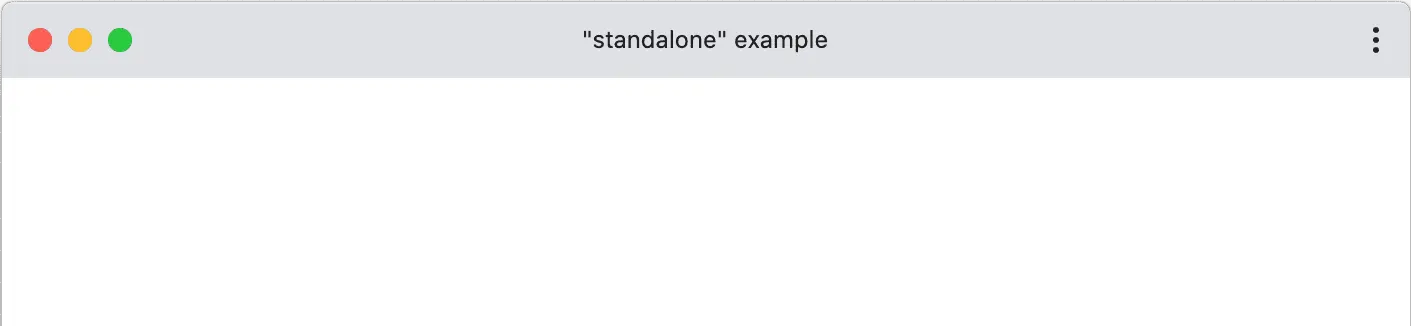
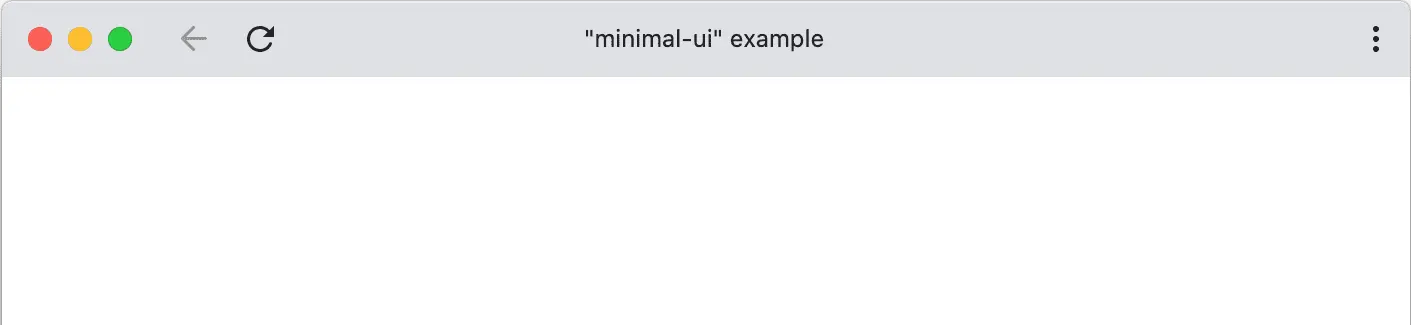
| display | standalone: address bar hidden — most common usage. fullscreen: full screen. minimal-ui: small back button. browser: normal browser view. |
| background_color | The background color of the splash screen. Visible before CSS loads. |
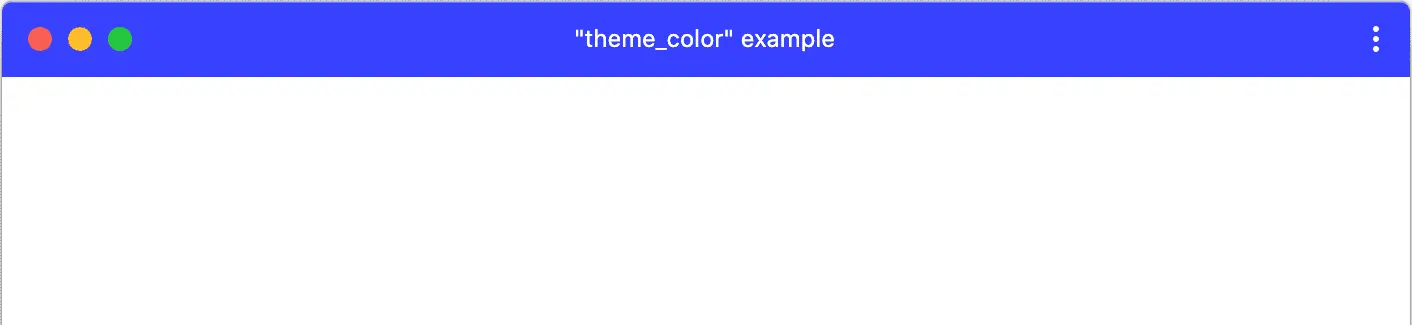
| theme_color | The color of the browser toolbar in Android Chrome and the taskbar color. Should match the <meta name="theme-color"> in HTML. |
| icons | A list of icons for different sizes. Chrome requires a minimum of 192x192 and 512x512. purpose: "maskable" is required for round icons on Android. All sizes: 72, 96, 128, 144, 152, 192, 384, 512 pixels. |
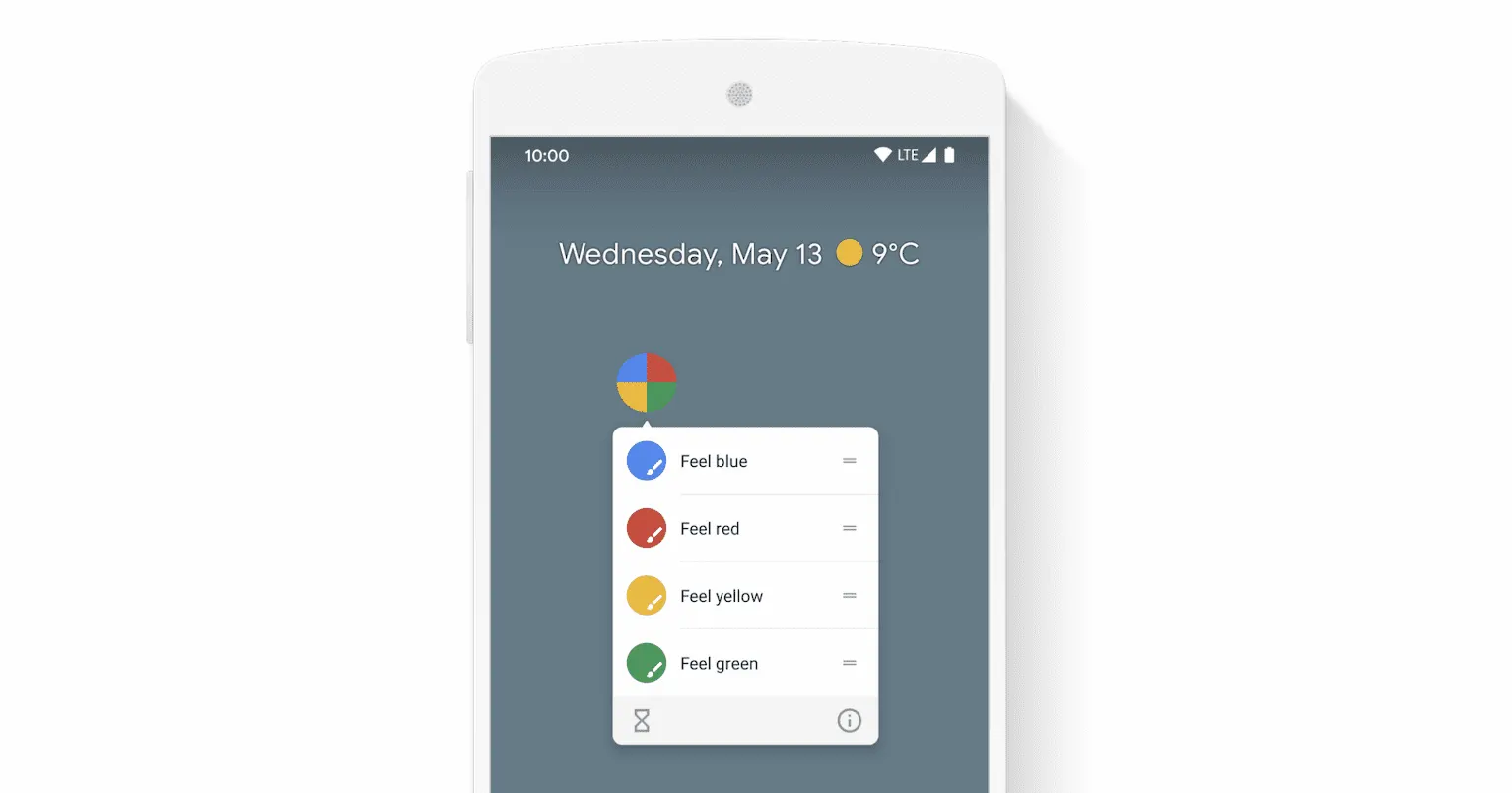
| shortcuts | Quick access menu that appears when the icon is long-pressed. For each shortcut, name, url, and icons are defined. |
| orientation | Supported screen orientation. "any" works in both portrait and landscape. |
| prefer_related_applications | If set to true, the browser will suggest the Play Store/App Store application instead of the PWA. Usually left as false. |
| lang / dir | The language of the content ("tr-TR", "en-US") and text direction ("ltr" or "rtl"). |
Serve this file with staticfiles in Django and add a link to the HTML head:
<!-- Add to the <head> section of base.html -->
<link rel="manifest" href="{% url 'manifest' %}">
<meta name="theme-color" content="#1a1a2e">
<meta name="mobile-web-app-capable" content="yes">
<meta name="apple-mobile-web-app-capable" content="yes">
<meta name="apple-mobile-web-app-status-bar-style" content="default">
<meta name="apple-mobile-web-app-title" content="AnomixLabs">
<link rel="apple-touch-icon" href="{% static 'icons/icon-192.png' %}">
Service Worker: Basic Structure
A Service Worker is a JavaScript file that runs in the background, independent of the main thread, and intercepts network requests:
// sw.js — Service Worker
const CACHE_NAME = 'anomix-v1';
const STATIC_ASSETS = [
  '/',
  '/static/css/main.css',
  '/static/js/app.js',
  '/offline/',
];

// Install: Cache static assets
self.addEventListener('install', (event) => {
  event.waitUntil(
    caches.open(CACHE_NAME).then(cache => cache.addAll(STATIC_ASSETS))
  );
  self.skipWaiting();
});

// Activate: Clean up old caches
self.addEventListener('activate', (event) => {
  event.waitUntil(
    caches.keys().then(keys =>
      Promise.all(keys.filter(k => k !== CACHE_NAME).map(k => caches.delete(k)))
    )
  );
  self.clients.claim();
});

// Fetch: Cache first, then network (Cache-First strategy)
self.addEventListener('fetch', (event) => {
  if (event.request.method !== 'GET') return;
  event.respondWith(
    caches.match(event.request).then(cached => {
      if (cached) return cached;
      return fetch(event.request).catch(() => caches.match('/offline/'));
    })
  );
});
Registering the Service Worker in Django:
// main.js
if ('serviceWorker' in navigator) {
  window.addEventListener('load', () => {
    navigator.serviceWorker.register('/sw.js', { scope: '/' })
      .then(reg => console.log('SW registered:', reg.scope))
      .catch(err => console.log('SW failed:', err));
  });
}
Important: The Service Worker file needs to be served at the root path (/sw.js) before Django URLs, requiring URL configuration:
# urls.py
from django.views.generic import TemplateView

urlpatterns = [
    path('sw.js', TemplateView.as_view(
        template_name='sw.js',
        content_type='application/javascript'
    ), name='service-worker'),
]
Workbox: A Library to Simplify Service Worker Management
Google's Workbox library provides service worker strategies with ready-to-use APIs:
// sw.js with Workbox
import { precacheAndRoute } from 'workbox-precaching';
import { registerRoute } from 'workbox-routing';
import { CacheFirst, NetworkFirst, StaleWhileRevalidate } from 'workbox-strategies';
import { ExpirationPlugin } from 'workbox-expiration';

// Precache static assets
precacheAndRoute(self.__WB_MANIFEST);

// Images: Cache-First (30 days)
registerRoute(
  ({ request }) => request.destination === 'image',
  new CacheFirst({
    cacheName: 'images',
    plugins: [new ExpirationPlugin({ maxEntries: 60, maxAgeSeconds: 30 * 24 * 3600 })]
  })
);

// API requests: Network-First
registerRoute(
  ({ url }) => url.pathname.startsWith('/api/'),
  new NetworkFirst({ cacheName: 'api-cache', networkTimeoutSeconds: 3 })
);

// Pages: Stale-While-Revalidate
registerRoute(
  ({ request }) => request.mode === 'navigate',
  new StaleWhileRevalidate({ cacheName: 'pages' })
);
Cache Strategies
- Cache-First: Check cache first, then fetch from the network. Ideal for logos, fonts, static CSS/JS.
- Network-First: Fetch from the network first, fall back to cache if it fails. For APIs and dynamic pages.
- Stale-While-Revalidate: Respond from cache immediately, then update in the background. Ideal for news pages.
- Cache-Only: Only use cache — for pre-loaded offline content.
- Network-Only: Do not use cache — for critical operations like payment pages.
Web Push API: Push Notifications with Django
The Web Push API allows users to receive notifications even when the browser is closed. It requires a VAPID (Voluntary Application Server Identification) key:
# pip install pywebpush
from pywebpush import webpush, WebPushException

def send_push_notification(subscription_info, message):
    try:
        webpush(
            subscription_info=subscription_info,
            data=json.dumps({'title': 'Anomix', 'body': message}),
            vapid_private_key=settings.VAPID_PRIVATE_KEY,
            vapid_claims={'sub': 'mailto:info@anomixlabs.com'}
        )
    except WebPushException as ex:
        logger.error('Push notification failed: %s', ex)
iOS limitation: On iOS, push notifications only work for PWAs added to the home screen; they do not work on an open page in the browser (iOS 16.4+). On Android, they work from the browser as well.
App Badging API
The App Badging API adds a count of unread items to the app icon — for email or messaging apps:
// Write the notification count to the badge
if ('setAppBadge' in navigator) {
  navigator.setAppBadge(unreadCount);
}

// Clear the badge
if ('clearAppBadge' in navigator) {
  navigator.clearAppBadge();
}
Offline Experience: The /offline/ Page
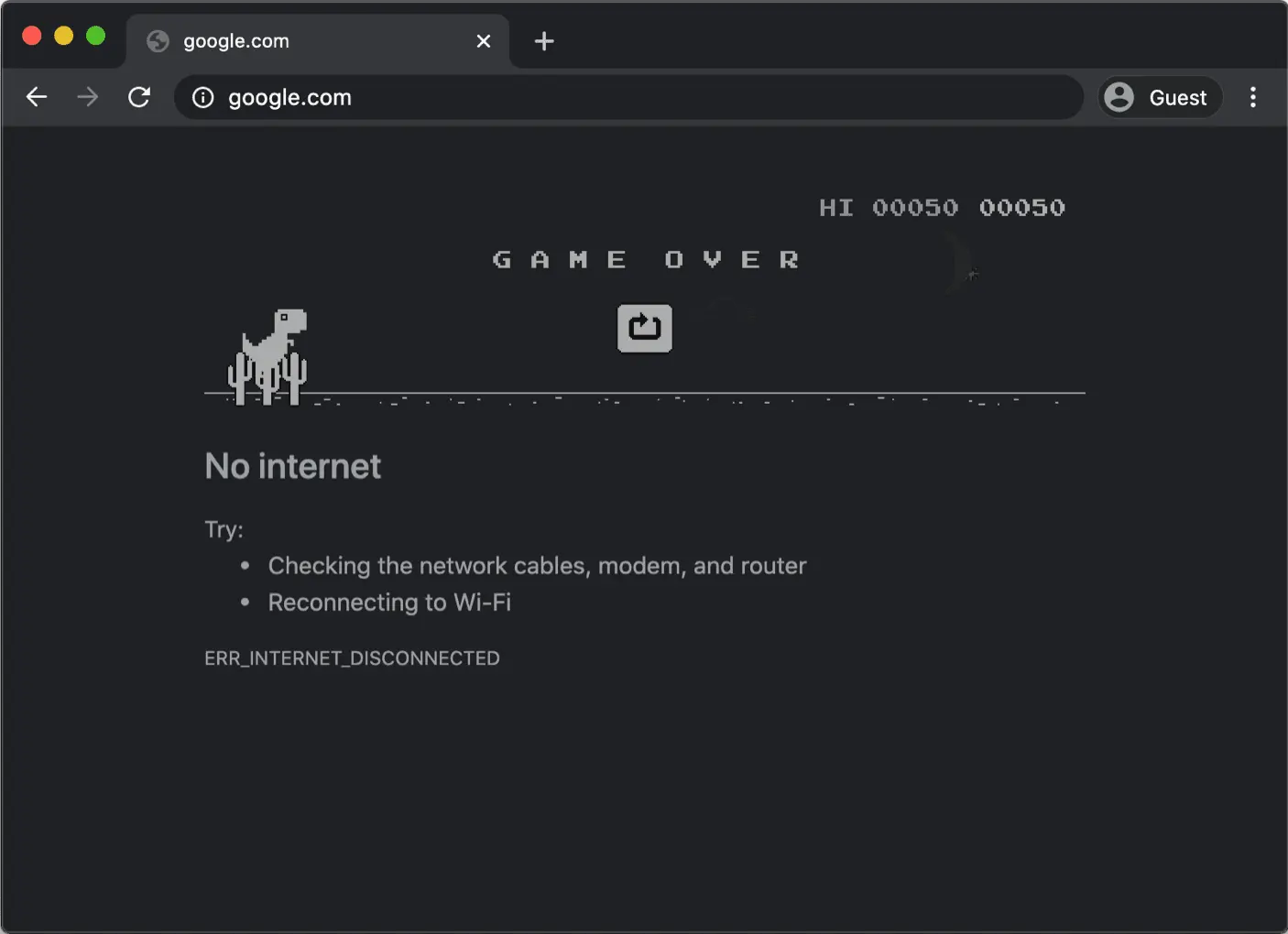
A fallback page to display when the user is offline and the requested page is not in the cache:
{% extends 'base.html' %}
{% block content %}
<div class="flex flex-col items-center justify-center min-h-[60vh] text-center px-4">
  <svg xmlns="http://www.w3.org/2000/svg" class="w-16 h-16 text-on-surface/20 mb-6"
       fill="none" viewBox="0 0 24 24" stroke="currentColor">
    <path stroke-linecap="round" stroke-linejoin="round" stroke-width="1.5"
          d="M3 15a4 4 0 004 4h10a5 5 0 002.45-9.34A7 7 0 106.33 15H3z" />
  </svg>
  <h1 class="text-2xl font-bold mb-2">No internet connection</h1>
  <p class="text-on-surface/60 mb-8">This page is not available offline.</p>
  <button onclick="window.location.reload()"
          class="px-6 py-3 bg-primary text-white rounded-xl font-medium
                 hover:opacity-90 transition-opacity">
    Try again
  </button>
</div>
{% endblock %}
Install Prompt: beforeinstallprompt
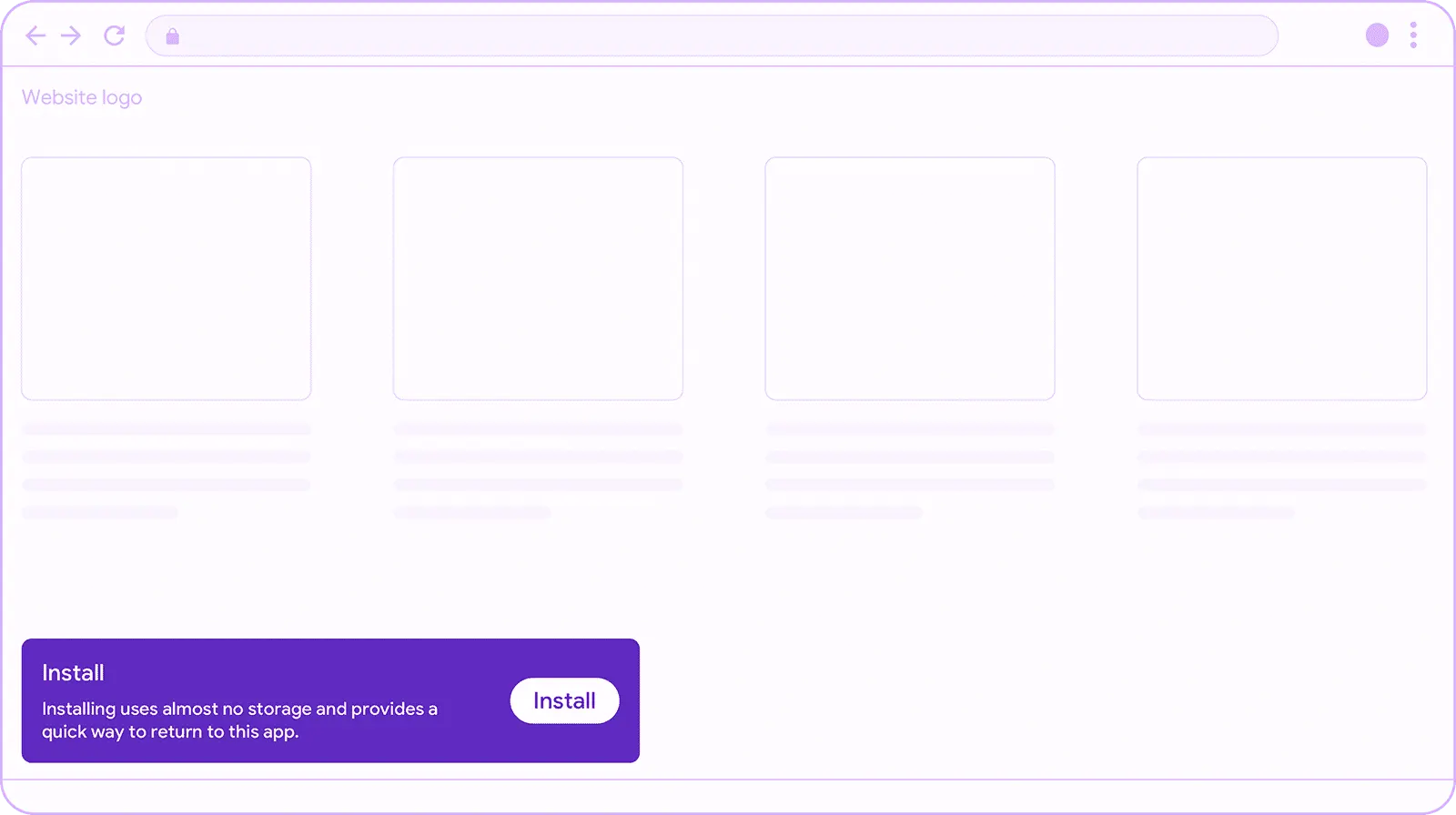
To prompt users to add the PWA to their home screen, capture the beforeinstallprompt event. The browser triggers this event automatically when PWA criteria are met — your job is to prevent the default behavior and show your own UI:

<!-- Add before </body> in base.html -->
<div id="pwa-banner" class="hidden fixed bottom-5 left-5 z-50
flex items-center gap-3 px-4 py-3 rounded-2xl
bg-surface-container border border-on-surface/10 shadow-lg">
<span class="text-sm text-on-surface">Add the app to your home screen</span>
<button id="pwa-install"
class="px-4 py-1.5 bg-primary text-white text-sm rounded-xl font-medium">
Install
</button>
<button id="pwa-dismiss" class="text-on-surface/40 text-lg leading-none">
×
</button>
</div>let deferredPrompt;
const banner = document.getElementById('pwa-banner');
const installBtn = document.getElementById('pwa-install');
const dismissBtn = document.getElementById('pwa-dismiss');
// When the browser has prepared the install prompt
window.addEventListener('beforeinstallprompt', (e) => {
e.preventDefault(); // Prevent the default banner
deferredPrompt = e;
banner.classList.remove('hidden');
});
// When the "Install" button is clicked
installBtn?.addEventListener('click', async () => {
banner.classList.add('hidden');
deferredPrompt.prompt();
const { outcome } = await deferredPrompt.userChoice;
console.log('PWA install:', outcome); // 'accepted' | 'dismissed'
deferredPrompt = null;
});
// Listen for the dismiss button
dismissBtn?.addEventListener('click', () => banner.classList.add('hidden'));
// When the app is successfully installed
window.addEventListener('appinstalled', () => {
banner.classList.add('hidden');
console.log('PWA installed');
});
// Detect if opened as PWA or in a normal browser
const isPwa = navigator.standalone
|| window.matchMedia('(display-mode: standalone)').matches;
console.log('Launch mode:', isPwa ? 'PWA' : 'browser');Browser support: beforeinstallprompt works in Chrome/Edge (Android and desktop). Safari does not trigger this event — manually show iOS users the "Share → Add to Home Screen" prompt (e.g., with a check for navigator.standalone === false).
Lighthouse PWA Audit for a Perfect Score
Lighthouse PWA audit criteria:
- HTTPS required
- Service Worker registered and active
- Web App Manifest filled with all required fields
- 192x192 and 512x512 maskable icons
start_urlavailable in cache if no redirect- HTTP → HTTPS redirect
theme-colormeta tag
Summary
Converting a Django project to a PWA involves 3 main steps: write manifest.json, add a service worker (/sw.js), and verify HTTPS. Workbox simplifies service worker management in production. Push notifications require the pywebpush library and VAPID keys. PWA support is stable after iOS 17.4, but some native API limitations on iOS persist.
Frequently Questions
Does iOS support PWA push notifications? expand_more
Can a PWA be listed on the App Store? expand_more
How should I define a Service Worker update strategy? expand_more
Should I choose offline-first or cache-first? expand_more
What are the disadvantages of PWA? expand_more
Should I use the django-pwa package? expand_more
How do I solve the CSRF token problem with Service Worker? expand_more
Ali Kasımoğlu
Full-stack Developer & Founder of AnomixLabs
A software developer specializing in the Python and Django ecosystem. Focuses on modern web architectures, AI integrations, and minimalist user experiences. Under the AnomixLabs umbrella, he aims to transform complex problems into lean and effective digital solutions.